This is REAPER 6 - Starting a New Project
Based on this video
Audio device settings
Check your audio device settings in the Reaper preferences (cmd + ,) Audio -> Device -> Audio device settings -> Audio Device. This can change if you plug into audio interfaces or microphones.
Start a new project
File menu -> New project or the first button on the toolbar. But nothing happens. This is because we haven’t saved the project yet. We can tell Reaper to prompt us so we don’t forget. Preferences -> Project -> Prompt to save on new project. Now we can save the file. Make sure to have both of the checkboxes below checked to create a subdirectory for the project and copy all new media into the project.
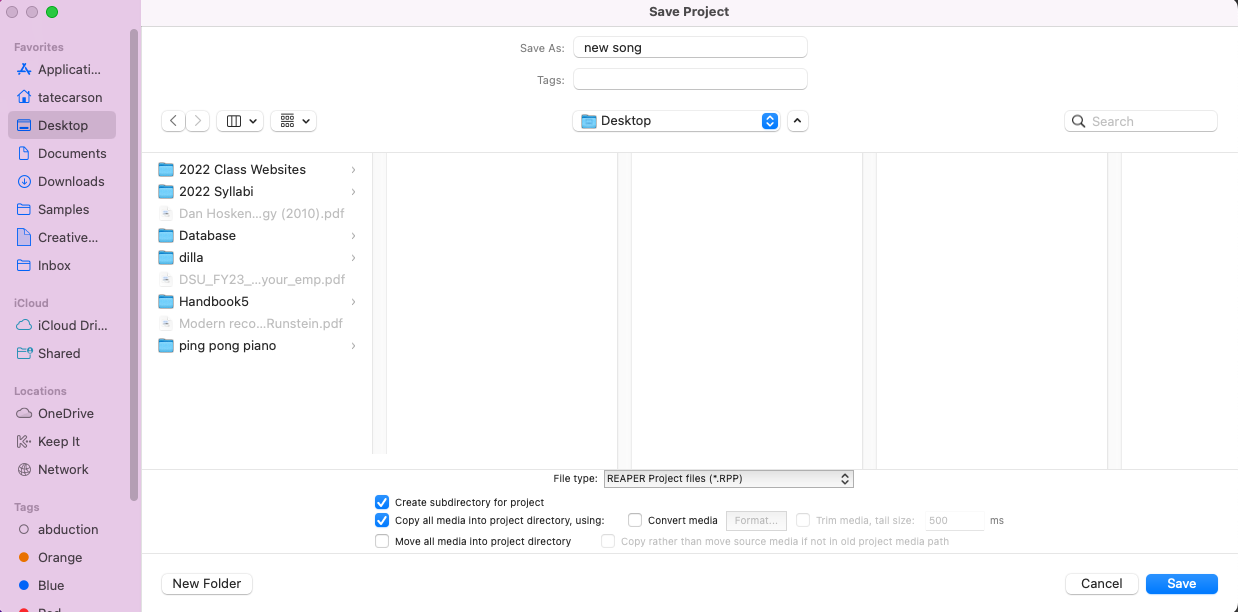
Now go find your project and notice that there is a folder with the RPP file.
Project settings
You can also prompt to edit the project settings. Create a directory to add your media files to called “Audio”. Also set “on import of media to project” to “copy media to project path.” Save as the default project settings so you don’t have to do this again. Now you should be able to add files to your project and have them automatically copied into your media directory.
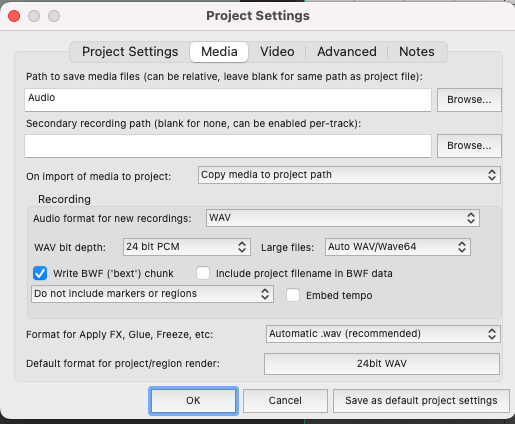
Peaks subfolder
To further organize your files go to Reaper Preferences -> Media and check “Put new peak files in peaks/ subfolder relative to media.
Project settings
You can now turn off “open properties on new project” since you saved your default settings.
Silent film sound effects
Add Buster Keaton’s Cops to your project and pick any 15 second segment of and add sound effects to the actions you see on screen. We will learn more through the semester about how to do this artfully, but now is your chance to use your intuition to give this scene more life.
Sound Effects resources:
- Freesound.org
- Freesound Labs
- SoundQ - downloadable tool to search SoundQ free sound effects and Freesound.org
- BBC Sound Effects
- Gamesounds xyz
Compress this file and submit to D2L