REAPER intro
What is REAPER?
REAPER is a digital audio workstation (DAW) built around flexibility. You can customize its shortcuts, menus, toolbars, and mouse behavior, but its defaults are enough to get started.
Main view
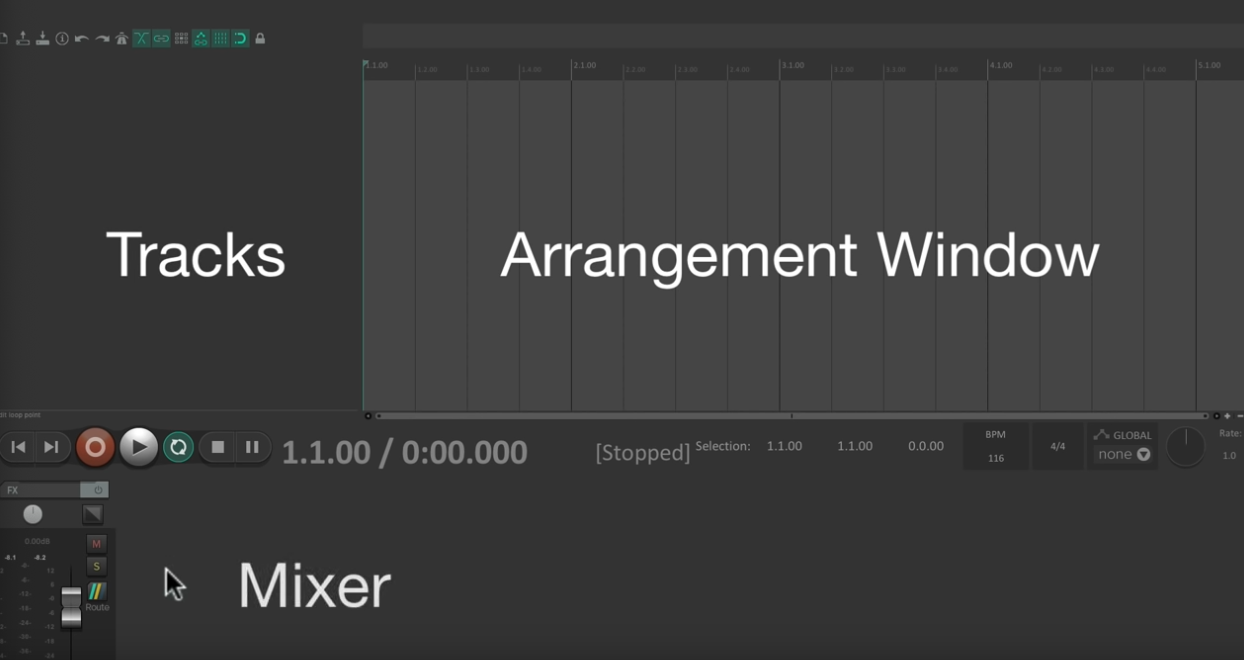
Show or hide the mixer with Cmd + M on macOS or Ctrl + M on Windows.
Track management
- New track: Press
Cmd/Ctrl + T, or double-click below the last track. - Delete a track: Select it and press
Delete.
Tracks in REAPER
- A track can hold audio, MIDI, video, or a mix of media types.
- Any track can become a folder that contains other tracks.
Try this
Put two media types on one track. Then create a folder that contains several tracks.
Timeline customization
Right-click on your timeline to change its units.
You try
Find a few sounds on Freesound and drag them into REAPER. Watch the track names and the way items snap to the grid. Use the magnet button if snapping is off. Press
Spaceto play or stop.
Working with items
- REAPER calls clips media items, or simply items.
- Drag an item to move it. Hold
Shiftwhile dragging to ignore snapping. - Hold
Cmdon macOS orCtrlon Windows while dragging to copy an item. - Drag an item’s left or right edge to trim it. Select several items to trim them together.
Looping and fades
- Loop an item: Drag its right edge past the end of the source.
- Add a fade: Drag the handle at an item’s top corner.
- Crossfade: Overlap two items with auto-crossfade enabled, or select the items and a time range, then press
X. - Press
Rto toggle repeat playback.
Fast item editing
- Press
Sto split selected items at the edit cursor. - Press
F2to open item properties. - Hold
Shiftwhile moving an item to ignore snapping. - Right-click an item when you need the full set of editing commands.
Zoom and move around
- Horizontal zoom: Mouse wheel, or
-and+. - Vertical zoom:
Cmd + wheelon macOS orCtrl + wheelon Windows. - Horizontal scroll:
Option + wheelon macOS orAlt + wheelon Windows. - Press
Wto jump to the project start. PressEndto jump to the project end.
Track control panel (TCP)
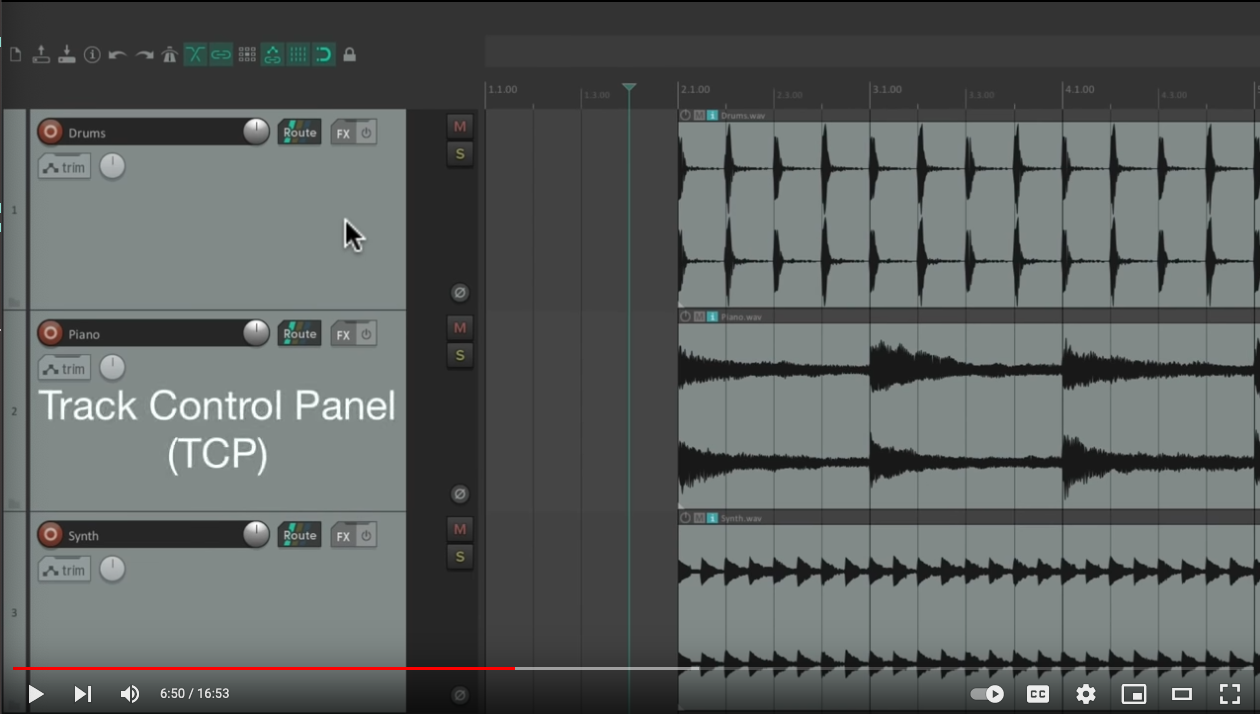
- The TCP gives you access to each track’s volume, mute, solo, pan, and other parameters.
Track context menu
- Right-Click: Right-click the track to access a contextual menu with more options.
The mixer
- Toggle the mixer with
Cmd + Mon macOS orCtrl + Mon Windows. Dock it in the main window or float it on another display.
Set the project tempo
- Edit the BPM field on the right side of the transport. Click it repeatedly to tap a tempo.
Change track size
- Drag a track edge or use
Cmd/Ctrl + wheelto resize tracks. Page Up/Downalso work on full-size keyboards.
Explore REAPER themes
Actions in REAPER
- Press
?to open the Actions list. - Search for any command, run it, or assign your own keyboard shortcut.