Building Dynamic Footstep Sounds in Unity with FMOD and Raycasting
Introduction⌗
Creating immersive game soundscapes often comes down to subtle details—like the sound of footsteps adapting to different surfaces. In this tutorial, we’ll expand upon previous FMOD parameter work by integrating Unity’s physics system to detect materials underfoot. Using raycasting and tags, we’ll dynamically alter footstep sounds to reflect the player’s environment—be it grass, stone, puddles, or earth.
This guide walks through each step: tagging surfaces, scripting raycasts, and linking an enum-backed FMOD parameter for a responsive, data‑driven footstep system. If you follow along from top to bottom, you’ll go from a blank scene to fully adaptive footsteps.
Recap: Where We Left Off⌗
In the previous session, we created a simple FMOD event that played footstep sounds through Unity animation triggers. We:
- Created a footstep event in FMOD with a “Material” parameter.
- Wrote a Unity C# script to instantiate, play, and destroy the event on each step.
- Linked animation events to ensure footstep sounds triggered precisely in sync.
Now, we’ll enhance that system so footsteps automatically change depending on what surface the player is walking or running across.
Step 1: Setting Up Tags in Unity⌗
Tags let you label objects and detect them in scripts. Each surface type gets a unique tag.
- Navigate to Edit → Project Settings → Tags & Layers.
- Under Tags, click + and add:
- Earth
- Stone
- Puddle
- Grass
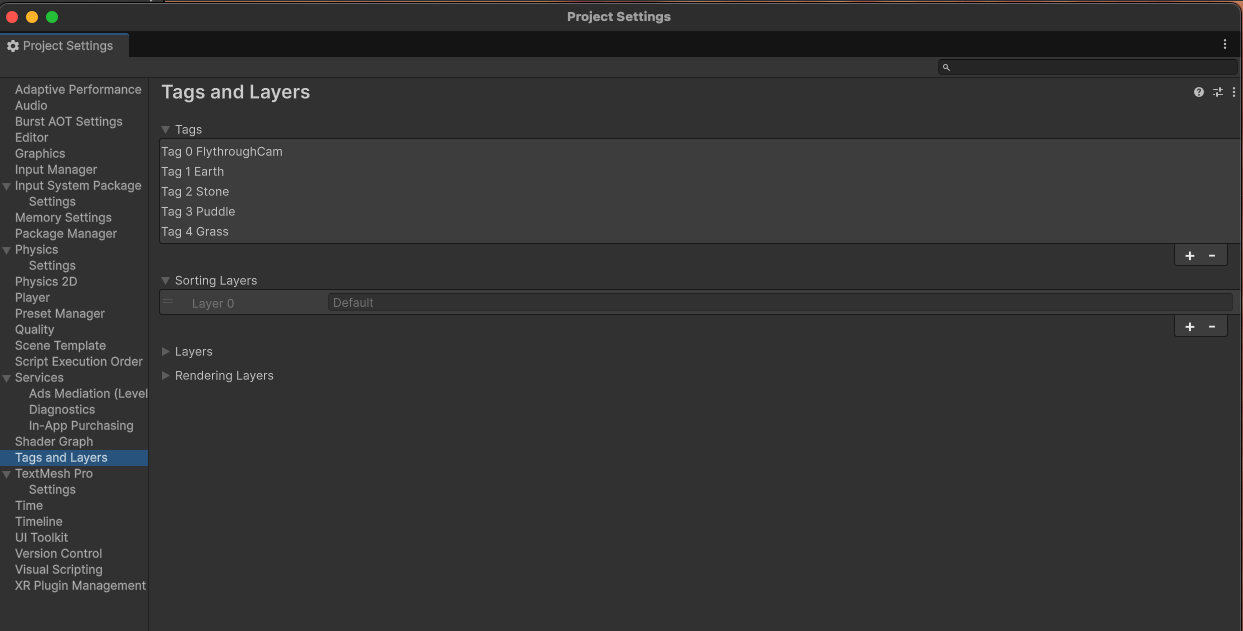
Assign these tags to relevant scene objects—terrain, stairs, platforms, etc. Apply the tag to the collider you expect the raycast to hit (often on the same GameObject that has the Mesh Collider or Box Collider).
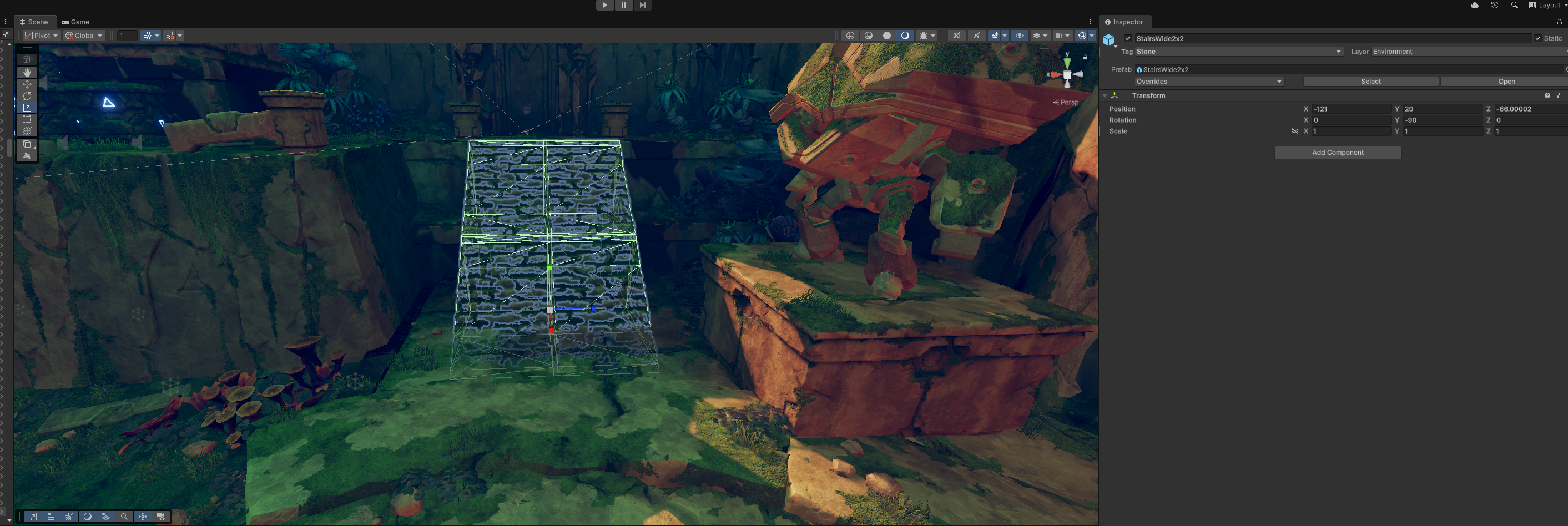 Tagging even a few surfaces is enough to test. Later, we’ll expand this system to cover more materials using Physics Materials or Terrain Textures.
Step 2: Script Framework⌗
Start by defining an enum for surface types and the core fields/methods in your player script. Add this to your player controller (or a dedicated audio component on the player).
An enum is a new data type we haven’t used yet. It lets us define a set of named constants, which we can use to represent discrete values (like surface types). This makes our code more readable and less error-prone than using raw integers or strings.
using UnityEngine;
using FMODUnity;
using FMOD.Studio;

public enum MaterialType { Earth = 0, Stone = 1, Puddle = 2, Grass = 3 }

public class F_Player : MonoBehaviour
{
    [SerializeField] private LayerMask groundLayerMask;
    [SerializeField] private float rayDistance = 1.5f;

    private MaterialType currentMaterial;
    private RaycastHit hitInfo;
    private Rigidbody rb;

    private void Awake()
    {
        rb = GetComponent<Rigidbody>();
    }

    private void Update()
    {
        // Step 4 will explain this debug line
        Debug.DrawRay(transform.position, Vector3.down * rayDistance, Color.red);
    }

    public void PlayRunEvent(string eventPath)
    {
        if (string.IsNullOrEmpty(eventPath)) return;
        MaterialCheck();
        EventInstance run = RuntimeManager.CreateInstance(eventPath);
        RuntimeManager.AttachInstanceToGameObject(run, gameObject, rb);
        // Step 6: we'll create/start the FMOD event and set the parameter
    }

    private void MaterialCheck()
    {
        // Steps 3–5: raycast and set currentMaterial
    }
}
Notes:
- Enum names must match tags exactly:
Earth,Stone,Puddle,Grass. groundLayerMaskshould include only layers containing walkable geometry.rayDistancedefaults to 1.5m; adjust to your character height.
Step 3: Raycasting to Detect Surfaces⌗
The script casts a ray downward from the player to find the surface beneath:
if (Physics.Raycast(transform.position, Vector3.down, out hitInfo, rayDistance, groundLayerMask))
{
    // hitInfo.collider is the surface collider we tagged
}
transform.position= Player positionVector3.down= Direction toward the groundrayDistance= Ray length (default 1.5m)groundLayerMask= Limit detection to your environment layers (e.g.,Environment,WaterGeometry)
In the Inspector, assign the groundLayerMask to include only layers with tagged ground geometry.
If you find gaps on stairs or steep terrain, consider a small sphere cast:
if (Physics.SphereCast(transform.position, 0.1f, Vector3.down, out hitInfo, rayDistance, groundLayerMask))
{
    // Slightly more forgiving than a thin ray
}
Step 4: Visualize the Ray⌗
The script draws the ray each frame for easy debugging:
Debug.DrawRay(transform.position, Vector3.down * rayDistance, Color.red);
View this in the Scene window as you move the player to ensure correct origin and length.
Step 5: Tags → Enum Mapping⌗
Inside MaterialCheck() and Raycast if statement, add this code to convert the detected tag into the enum value:
if (System.Enum.TryParse(hitInfo.collider.tag, out MaterialType material))
{
    currentMaterial = material;
}
- TryParse: Attempts to map the tag (e.g., “Stone”) to
MaterialType.Stone. - Safe update: Only assigns
currentMaterialwhen parsing returns true; otherwise the previous value remains. - Optional default: If you want an explicit fallback when parsing fails, add an else:
if (System.Enum.TryParse(hitInfo.collider.tag, out MaterialType material))
{
    currentMaterial = material;
}
else
{
    currentMaterial = MaterialType.Earth; // default
}
Step 6: FMOD Parameter Setup⌗
The script sets the parameter via, which you’ll add inside PlayRunEvent before starting the event:
run.setParameterByName("Material", (float)currentMaterial);
Step 7: Full Script⌗
Here’s the complete script with all steps combined:
using UnityEngine;
using FMODUnity;
using FMOD.Studio;

public enum MaterialType
{
    Earth = 0,
    Stone = 1,
    Puddle = 2,
    Grass = 3
}

public class F_Player : MonoBehaviour
{
    [SerializeField] private LayerMask groundLayerMask;
    [SerializeField] private float rayDistance = 1.5f;

    private MaterialType currentMaterial;
    private RaycastHit hitInfo;
    private Rigidbody rb;

    private void Awake()
    {
        rb = GetComponent<Rigidbody>();
    }

    private void Update()
    {
        Debug.DrawRay(transform.position, Vector3.down * rayDistance, Color.red);
    }

    public void PlayRunEvent(string eventPath)
    {
        if (string.IsNullOrEmpty(eventPath)) return;

        MaterialCheck();

        EventInstance run = RuntimeManager.CreateInstance(eventPath);
        RuntimeManager.AttachInstanceToGameObject(run, gameObject, rb);
        run.setParameterByName("Material", (float)currentMaterial);
        run.start();
        run.release();
    }

    private void MaterialCheck()
    {
        if (Physics.Raycast(transform.position, Vector3.down, out hitInfo, rayDistance, groundLayerMask))
        {
            Debug.Log("Hit material: " + hitInfo.collider.tag);
            if (System.Enum.TryParse(hitInfo.collider.tag, out MaterialType material))
            {
                currentMaterial = material;
            }
        }
    }
}
References: